
Prepare and run
You only need four decisions before the first result:
- Create a dedicated working folder.
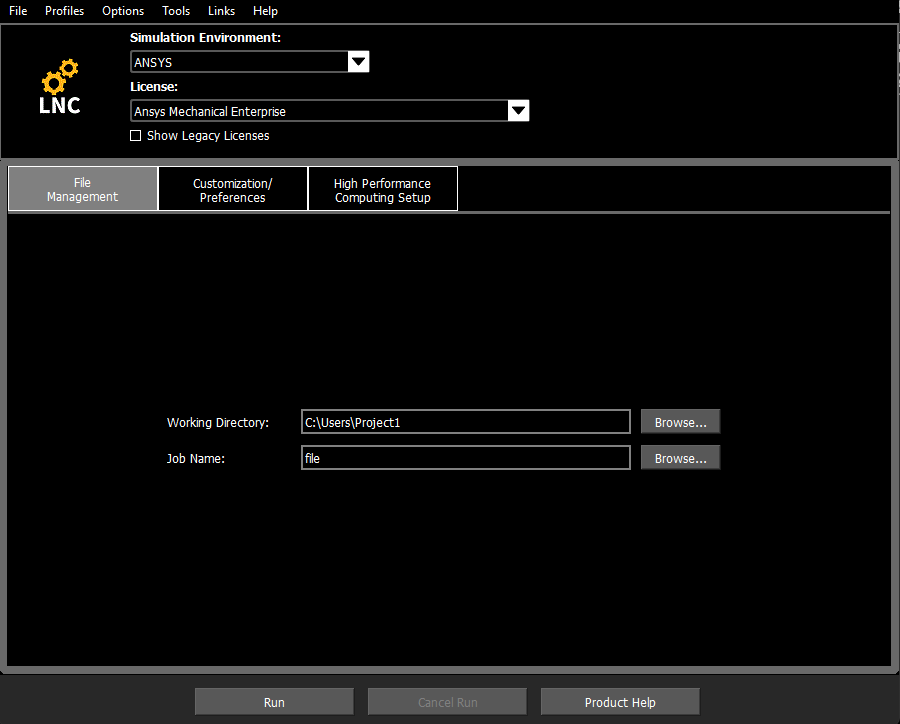
- Set Working Directory and Job Name in Product Launcher.
- Locate the five zones of the main window.
- Run the template with
/INPUT.
Folder and script
Create a dedicated folder, for example:
C:\APDL_Projects\M00
Download
00_session_template.mac
and save it in that folder.
Product Launcher
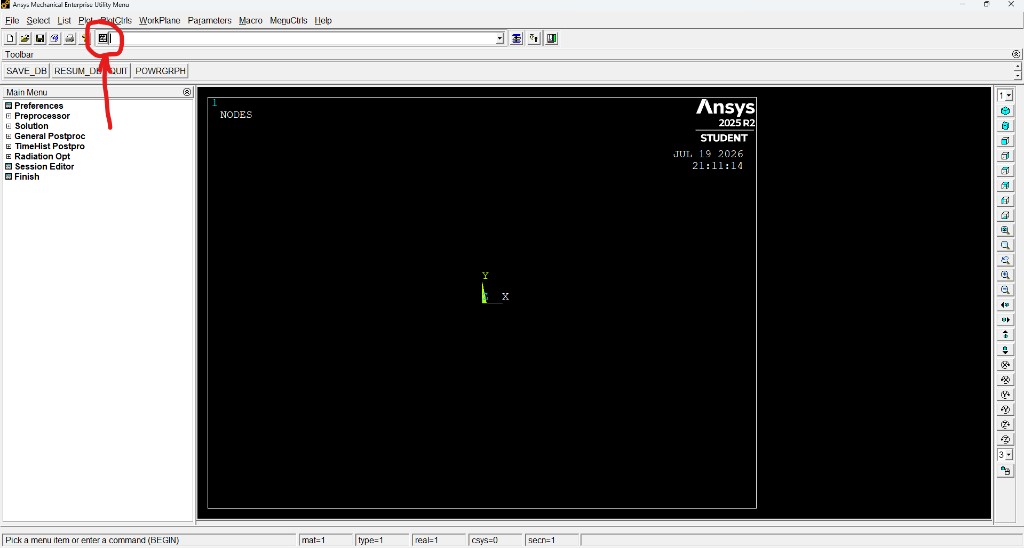
Five zones you will use in almost every session:
- Command Input: top box where you can type a command.
- Main Menu: side tree with preprocessing, solution, and postprocessing.
- Viewport: graphical area where geometry, mesh, and results will appear.
- Active processor: the bottom bar initially shows
BEGIN. - Active attributes:
mat,type,real,csys, andsecnum.
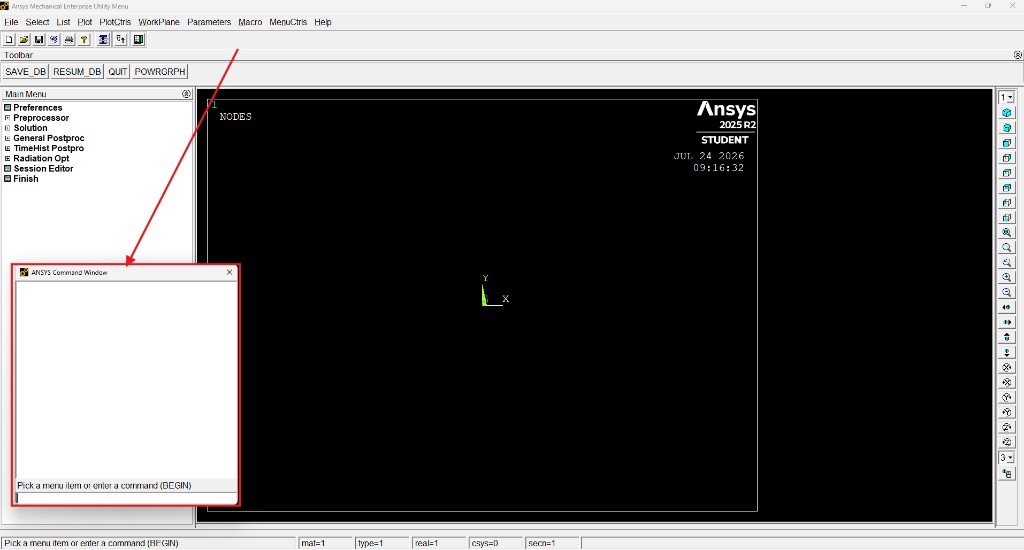
Optional: undock the Command Window
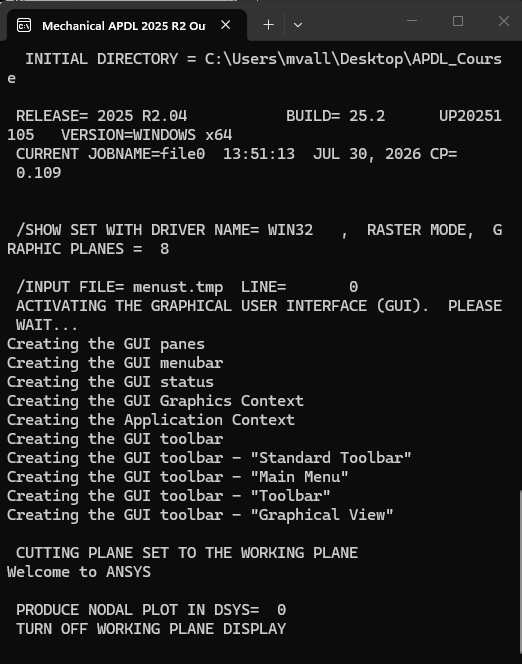
Do not confuse the Output Window with the Command Window. The Output Window records the full session log; the Command Window shows the interactive command dialogue and immediate responses. You can show it from the top toolbar and undock it beside the viewport to follow execution without hiding geometry or contours.
Optional: syntax highlighting for .mac scripts
Not required to complete M00, but syntax highlighting makes comments, blocks, and commands easier to read. Avoid Word or plain Notepad: the script is plain text.
Optional Notepad++ language file:
ansys-apdl-notepad++.udl.xml
— see the
installation guide.
Run the template
/INPUT,00_session_template,macIf the file is in the Working Directory, you do not need the full path. During execution you will see geometry, mesh, and contours in the viewport.
If you want to understand the generated files
The template runs /FILNAME,m00_cantilever,1, so main exercise files use the prefix
m00_cantilever. ANSYS reserves m00_cantilever.out for the job; therefore
the script log is redirected to m00_session.out with
/OUTPUT,m00_session,out.
You do not need to configure Switch Output to → File manually in M00: redirection is
already in the template. At the end, a bare /OUTPUT returns live output to the Output
Window.